



If your Google Ads budget feels busy but your phone still isn’t ringing, google ads negative keywords are probably the leak. This is the single fastest cleanup inside most accounts, especially in local service campaigns where one bad search can cost more than lunch on Archer Road. Here’s how to find the waste, block it correctly, and keep good leads flowing.
What You’ll Need Before You Start
Before touching anything in Google Ads, get three basics lined up: access, data, and a clear definition of a good lead. Without those, negative keyword work turns into random cleanup, and random cleanup is how good traffic gets blocked by accident.
Access to the right Google Ads views
Make sure you can get into the campaign view, ad group view, and the Search Terms report. That last one matters most because it shows the actual searches typed before somebody clicked.
If your account has layers of permissions or outside management, fix that first. Negative keyword work is simple once you can see the real data. Without visibility, you are guessing.
A simple definition of a negative keyword
A negative keyword is a term you tell Google not to match with your ads. In plain English, it’s the filter that stops your budget from showing up for searches you never wanted in the first place.
Think of it like a bouncer at the door. Good prospects get in. Job seekers, DIY researchers, bargain hunters, and people three counties away get turned around before they cost you money.
A quick note on when this matters most
Negative keywords matter in every account, but they matter even more when clicks are expensive, your service area is tight, or lead quality matters more than raw volume. Roofing, HVAC, legal, plumbing, med spas, pest control, and other local services feel this hard because bad clicks are rarely cheap.
If your campaign already feels padded with junk, cleaning search intent is often the first move before deeper work like cutting waste without choking off good leads.
Step 1: Spot the real signs your ads are wasting money
Before adding anything, notice what the problem actually looks like. Most wasted spend does not announce itself with flashing lights. It shows up as activity that looks promising until you trace it back to real leads.
- Open your campaign performance for a recent period.
- Compare clicks against calls, form fills, and booked jobs.
- Note any campaigns that spend steadily but produce weak or irrelevant leads.
- Mark those campaigns for a search term review.
Success here looks simple: you can point to at least one campaign where traffic volume and lead quality do not match.
Watch for clicks that look busy but go nowhere
A campaign can have plenty of clicks and still be bad. If calls are low, forms are junk, or inquiries feel like window shoppers, that is a search intent problem until proven otherwise.
A lot of accounts get praised for traffic while the business owner quietly wonders why nothing closes. Ignore the vanity metrics. If the traffic does not turn into estimate requests, booked appointments, or qualified calls, it is not helping.
Look for mismatch between search intent and your offer
Bad spend usually comes from bad intent. Somebody searching “how to patch roof leak yourself” is not the same person as somebody searching “roof replacement Gainesville FL.”
Look for patterns like research terms, job seeker phrases, training searches, parts searches, or locations you do not serve. The click happened, but the intent was wrong from the start.
Use one concrete time frame to review
Use the last 30 to 90 days. That is usually enough time to see patterns without getting buried in old noise.
If your account has high volume, 30 days is often enough. If your campaign is smaller or seasonal, go closer to 90 days so you are not making decisions off three weird searches and one rainy Tuesday.
Step 2: Open the Search Terms report and find the searches draining your budget
This is where the truth lives. Keywords are what you target, but search terms are what people actually typed. That difference matters more than most agencies admit.
- Go to your Google Ads account.
- Click Campaigns or Ad groups.
- Select the campaign you want to review.
- Click Insights and reports, then Search terms, or the current Search Terms view in your interface.
- Set your date range to the review window you chose.
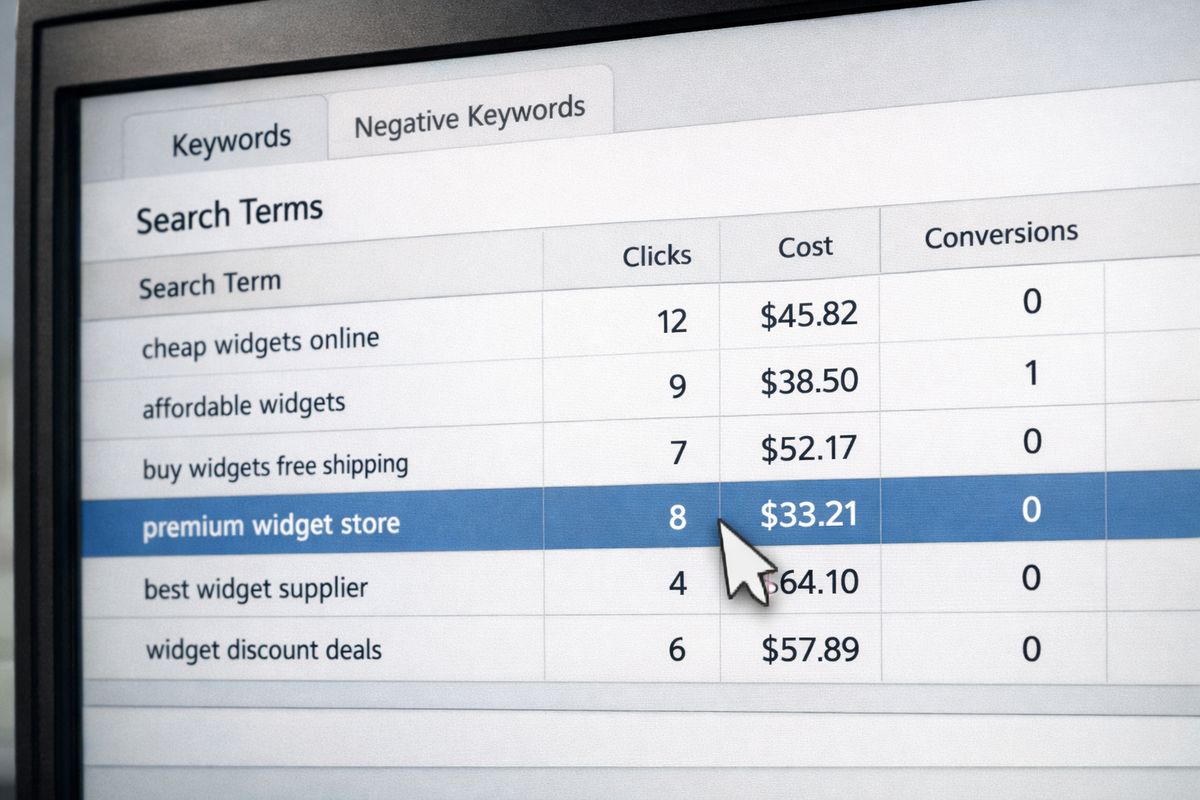
Checkpoint: you should now see a list of real searches, along with clicks, cost, conversions, and other metrics.
Find the Search Terms report in Google Ads
Google changes the interface just often enough to be annoying, but the idea stays the same. You want the report that shows the actual search queries that triggered your ads, not just your keyword list.
If your account structure is messy, start at the campaign level before drilling into ad groups. That gives you a cleaner view of where the biggest leaks sit.
Sort by cost, clicks, and conversions first
Start with cost. Expensive search terms with zero conversions deserve attention before oddball low-cost terms.
Then sort by clicks and conversions. A phrase that ate 18 clicks and never produced a call tells a much clearer story than a phrase that spent $2 once. This is where a proper account checkup saves time, because the goal is not to find every imperfection, it is to stop the expensive waste first.
Flag patterns, not just one-off weird searches
Do not obsess over one bizarre query unless it spent real money. Look for repeat themes: “free,” “jobs,” “how to,” “training,” “Reddit,” “YouTube,” “supplies,” or unrelated service types.
Patterns are where savings stack up. One bad click is annoying. Twenty versions of the same bad intent is a hole in the bucket.
Step 3: Separate bad-fit searches into clear negative keyword buckets
Once you spot junk, organize it. A clean list is easier to maintain and much less likely to block good traffic by mistake.
- Create a simple sheet or note.
- Add headings for jobs, DIY, research, geography, unrelated services, and price shoppers.
- Drop your flagged search terms into the right bucket.
- Look for root words that can block multiple bad searches at once.
Exclude job seekers and career-related searches
If you want customers, terms like jobs, hiring, salary, career, apprenticeship, and resume should usually be blocked fast. These searches can soak up budget, especially in trades where labor demand is high.
The catch is that recruiting campaigns are a separate thing. If you run hiring ads, keep those isolated from lead generation campaigns so your negatives stay clean.
Exclude research-only and low-intent searches
Searches with “how to,” “what is,” “DIY,” “tutorial,” “template,” or “free” often signal curiosity, not buying intent. Not always, but often enough that they deserve scrutiny.
If your business sells immediate service, not education, block the research phrases that repeatedly waste spend. This is one of the biggest differences between a generic campaign and the kind of ZERO-WASTE PPC cleanup Imperium Marketing Solutions is known for.
Exclude unrelated products or services
Some searches sound close but are still wrong. Repair versus replacement, residential versus commercial, one trade confused with another, or parts instead of service, all of that can burn budget.
Read the query literally. If the person is looking for something you do not offer, block it.
Exclude bad geography
If you serve Gainesville, Alachua, Ocala, Lake City, or a tight North Central Florida radius, do not pay for clicks from Tampa, Orlando, or Atlanta unless you actually want them.
Add city, county, or regional negatives when the wrong locations keep showing up in search terms. Geography mistakes are common, especially when location settings are loose or campaigns were copied from a broader setup.
Exclude bargain hunters if they never convert
Cheap, free, low cost, discount, and similar price-first terms can be fine in some businesses. In others, they produce no-shows, bad calls, or shoppers who were never serious.
Use your own conversion history as the judge. If those searches consistently waste time and money, filter them out.
Step 4: Choose the right negative match type so you don’t block good traffic
This is where plenty of accounts get into trouble. The wrong negative match type can shut off useful searches right along with the junk.
- Review the bad-fit search term you found.
- Decide whether you want to block a theme, a phrase, or one exact query.
- Choose the negative match type based on that goal.
- Add the term carefully, then check converting searches afterward.
Negative broad match
A broad negative blocks searches containing all the negative keyword terms, though not necessarily in the same order. It is useful for themes you never want, like jobs or training.
Broad negatives are powerful, which means you need restraint. Good for obvious junk. Risky for words that can appear inside good searches.
Negative phrase match
Negative phrase match blocks searches containing that exact phrase in that order. This is often the safer middle ground because it keeps some flexibility while still cutting out a repeat problem.
If “roof repair jobs” keeps showing up, phrase match can help you block that intent pattern without blocking every search containing either word on its own.
Negative exact match
Negative exact match blocks one precise search term. This is the right choice when a specific query is wasting money, but related searches might still be useful.
Use it when you know the exact search is bad but do not want to cast a wider net yet. Honestly, this is a smart starting point when you are nervous about overblocking.
The catch with being too aggressive
Too many negatives added too fast can act like putting tape over the wrong light switch. Yes, the annoying thing stops. So does the thing you needed.
Always compare planned negatives against converting searches before publishing large batches. If your campaign structure is messy and themes overlap, it may be worth reviewing how account management should actually be handled before pushing account-wide exclusions.

Step 5: Add negative keywords at the right level in Google Ads
Where you place negatives matters almost as much as which negatives you choose. The wrong level can create conflicts or block searches more broadly than intended.
- Decide if the term is bad everywhere or only in one campaign or ad group.
- Add universal negatives higher up.
- Add theme-specific negatives lower down.
- Save shared lists for repeat use across campaigns.
Add negatives at the campaign level
Use campaign-level negatives when a term is wrong for the entire campaign. If the whole campaign is for residential roof replacement, and “jobs” is never useful there, block it at the campaign level.
This keeps the cleanup simple and consistent across all ad groups inside that campaign.
Add negatives at the ad group level
Use ad group negatives when a term creates overlap or belongs only in one part of the account. This is especially useful when ad groups target closely related services.
For example, if one ad group is for installation and another is for repair, ad group negatives can keep traffic from crossing into the wrong bucket.
Use account-level negative keywords when the term is never useful
Google Ads supports account-level negative keywords for terms you never want anywhere. Think jobs, resumes, or free, if those are universally bad in your business.
Use this for true account-wide junk, not for terms that could convert in one corner of the account later.
Build and save shared negative keyword lists
Shared lists save time if you manage multiple locations or service lines. Create lists by theme, then apply them where they belong.
A jobs list, DIY list, and out-of-area list can clean up future campaigns before launch. That is much better than fixing the same leak every month.
Step 6: Build a starter negative keyword list for local and home service campaigns
Starting from a blank screen is annoying. Use a starter list, then tailor it to your business.
- Pull your own search term data first.
- Build a draft list from obvious themes.
- Apply the safest negatives first.
- Review performance after launch and expand the list.
Local lead generation negatives to review first
For many local businesses, common starters include jobs, careers, salary, hiring, free, DIY, how to, tutorial, YouTube, Reddit, template, and sample.
Do not add every word blindly. Check your search terms and conversion history, then use the list as a filter, not a script.
Home services negatives to review first
Roofers, HVAC companies, plumbers, electricians, and similar businesses should also watch for parts, supplies, wholesale, classes, certification, training, and tools. Those searches often attract people shopping for materials or learning the trade, not hiring a pro.
Competitor accounts in this space often waste money because broad targeting pulls in too much curiosity traffic. If pricing and setup still feel fuzzy, it helps to understand what solid management usually costs and includes.
Geography and service-area negatives
If you only serve certain ZIP codes, towns, or counties, build those boundaries into your negatives where needed. This is especially useful when your keywords include larger regional terms that can drift.
Location negatives work best when paired with tight location targeting settings. One without the other leaves gaps.
Competitor terms: when to exclude and when to keep
Competitor searches are not automatically bad. Sometimes they convert. Sometimes they are just expensive curiosity clicks from people comparing options or looking for support on an existing vendor.
Check the data. If competitor searches cost a lot and produce nothing, block them. If they turn into real leads at a workable cost, keep them.
Step 7: Double-check that your negatives won’t block good leads
Before and after publishing, sanity-check the list. A cleaner account is great. A silent phone is not.
- Review planned negatives against your conversion data.
- Scan for wording overlaps.
- Check match types and formatting.
- Watch performance closely after changes go live.
Compare negatives against your converting search terms
Search for your planned negative word inside your converting queries. If that word also appears in leads that turned into calls or forms, slow down and tighten the match type.
This is the step people skip when in a hurry. It is also the step that prevents painful mistakes.
Watch for singulars, plurals, and close variations
Small wording changes matter. A singular may behave differently from a plural, and a root word may appear inside valuable searches.
Google explains that negative keywords do not match close variants the same way regular keywords can, so review plural and singular versions carefully (Google Ads Help).
Be careful with symbols, punctuation, and odd formatting
Copied lists from spreadsheets can include extra spaces, punctuation, or formatting weirdness. Clean those up before uploading.
This sounds minor, but messy lists create messy results. Keep entries plain and deliberate.
Step 8: Monitor results and keep refining your list every month
Negative keyword work is not one-and-done. Search behavior shifts, campaigns expand, and junk creeps back in.
- Set a recurring review schedule.
- Check search terms regularly.
- Add new negatives in batches.
- Track what changed after each cleanup.
Review search terms on a simple schedule
For active campaigns, weekly works well. For steadier accounts, monthly is usually enough.
The trick is consistency. A short review done every month beats a giant cleanup done once a year after thousands of dollars already leaked out.
Measure what improved after adding negatives
Look for lower wasted spend, better lead quality, stronger conversion rate, and cleaner search intent. You are not chasing lower click volume just to make a report look tidy.
You want better-fit traffic. More calls from people ready to book. Fewer junk forms and bad-fit searches.
Keep a running master list by theme
Keep master lists for jobs, DIY, geography, low intent, and irrelevant services. That way new campaigns start cleaner from day one instead of relearning the same lessons.
This is one of the simplest habits that separates stable accounts from chaotic ones.
Troubleshooting Common Negative Keyword Problems
Even good cleanup can create confusion at first. The key is to diagnose calmly instead of ripping everything back out.
“Clicks dropped, but leads didn’t improve”
Sometimes that means you removed junk traffic but still have another issue, like weak landing pages, weak offers, or bad primary keyword targeting.
If your search terms are cleaner but performance is flat, the waste was only part of the problem. Keep digging.
“Leads dropped after adding negatives”
Audit your recent changes. Look for broad negatives that may have blocked good-intent searches, then roll back the likely offenders first.
Do not panic and delete the whole list. Reverse the newest aggressive changes, then recheck converting queries.
“The same junk searches keep coming back”
New variations will always appear over time. Tighten match types, improve campaign structure, and keep adding to shared lists as patterns repeat.
Google Ads is not static. Your filters should not be either.
“The search terms look fine, but the leads are still bad”
Check location settings, ad copy, landing page message match, and conversion tracking. Bad leads can come from a weak handoff, not just bad keywords.
Sometimes the search was fine, but the ad promised one thing and the page delivered another. That disconnect kills quality fast.
What You Should Expect After Cleanup
A good cleanup usually makes the account feel less noisy. Fewer junk clicks. Better conversations. Easier decisions.
Better-fit traffic instead of just less traffic
The goal is not fewer clicks for the sake of it. The goal is more of the right clicks from people ready to call, request a quote, or book service.
That shift matters more than any vanity metric in the dashboard.
Clearer reporting and easier budget decisions
Once junk traffic gets filtered out, performance data makes more sense. Budget decisions get easier because you can see which searches actually drive revenue.
That is also why business owners who have been burned by bloated agencies tend to value tight filtering and straight reporting. Waste hides bad management. Clean data exposes it.
One thing to try today
Open your Search Terms report, sort by cost, and add the first five obvious bad-fit searches as negatives. Small move, real payoff.
If you want a second set of eyes from a team built around accountability and a ZERO-WASTE PPC approach, Imperium Marketing Solutions is the kind of partner that treats your ad budget like actual money, not a monthly line item to burn through.